
Introduction
Navigating the Chaos of the System Crash
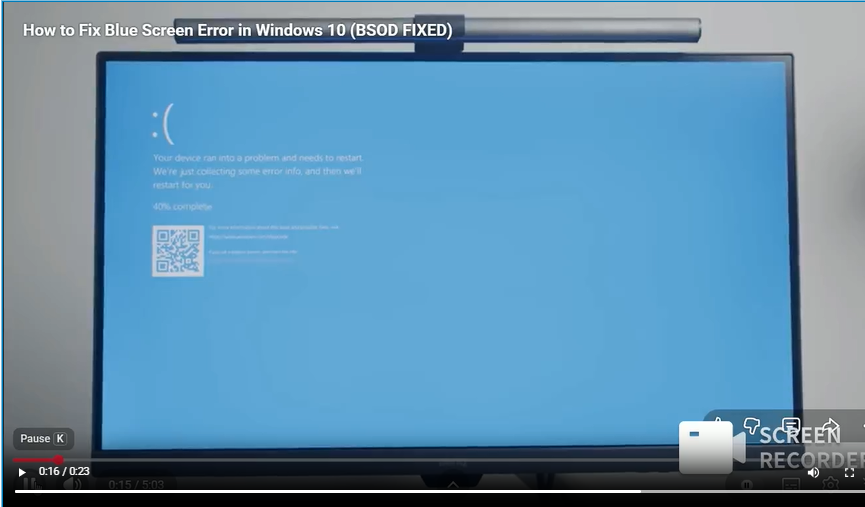
In the world of Information Technology, few sights are as universally feared{Read more} as the “Blue Screen of Death” (BSOD). One moment, you are at the height of productivity—perhaps finalizing a critical business proposal, rendering a high-definition video, or navigating a high-stakes gaming session—and the next, your digital world is replaced by a cold, blue void. For most users, this isn’t just a technical error; it is a moment of pure paralysis.
At Piscartsynergy.com, we understand that when your screen turns blue, your primary concern isn’t just “software stability”—it’s your data, your time, and your peace of mind. The BSOD is the Windows operating system’s way of pulling the emergency brake. It is a “Stop Error” triggered when the system encounters a conflict so severe that continuing to run could lead to permanent hardware damage or catastrophic data corruption.
However, while the BSOD looks like a “death sentence” for your computer, it is actually a diagnostic goldmine. Behind that cryptic white text and the frowning emoji lies a specific roadmap to the solution. The problem most users face is that they don’t have the “decoder ring” to understand what the computer is trying to tell them.
This article is designed to be your definitive training manual. We aren’t just going to show you how to “restart and hope for the best.” Instead, we will walk you through a professional-grade IT workflow. You will learn to identify the specific “Stop Codes,” analyze the underlying root causes—ranging from volatile drivers to failing hardware—and execute a surgical repair plan.
Whether you are a home user trying to save your family photos or an aspiring IT professional looking to sharpen your troubleshooting skills, this guide will transform the way you view system failures. By the end of this training, the Blue Screen will no longer be a source of panic, but a problem you are
fully equipped to solve
Quick Summary: To Fix a Blue Screen of Death (BSOD), Start by running the “sfc /scannow” Command in the Admin Command Prompt to repair corrupted system files. If that fails, use the DISM tool to download a fresh system image.
The Dreaded “Blue Screen”
The Blue Screen of Death (officially known as a Stop Error) is perhaps the most frustrating experience in the digital world. It doesn’t just stop your work; it feels like a total betrayal by your technology.
For the average user, the pain is three-fold:
- The Loss of Productivity: You were in the flow, and now that flow is shattered. If you hadn’t hit “save” in the last ten minutes, that data is likely gone.
- The Fear of the Unknown: The screen is cryptic. Words like
SYSTEM_THREAD_EXCEPTION_NOT_HANDLEDlook like gibberish to a non-IT professional, leading to the fear that the computer is permanently “fried.” - The Financial Anxiety: Many users immediately think they need to buy a new laptop or pay a technician hundreds of dollars to recover their photos and documents.
At Piscartsynergy.com, we recognize that this isn’t just a technical glitch—it’s a high-stress event. Our goal is to move you from panic to a structured “way out.”
Why Windows Hits the Panic Button
To fix the problem, we must understand the “Why.” A BSOD is actually a safety feature. Imagine if your car’s engine started melting; the car would shut itself off to prevent an explosion. That is what Windows is doing.
The Primary Culprits:
- Kernel-Level Conflicts: The Kernel is the “brain” of the OS. When a piece of software (usually a driver) tries to access a memory space it isn’t allowed to touch, the Kernel panics and halts everything.
- Hardware Instability: As components age, their voltage requirements change. If your RAM (Random Access Memory) fails to return data at the exact microsecond requested, the system collapses.
- The “Dirty” Update: Sometimes, a Windows update doesn’t install correctly, leaving two different versions of the same system file fighting for control.
- Thermal Throttling: If dust has clogged your cooling fans, your CPU (Central Processing Unit) will reach temperatures of 90°C–100°C. To prevent physical melting, the motherboard triggers a BSOD shuTools down.

The Professional Troubleshooting Workflow
Step-by-Step Fix:
In IT, we don’t guess; we diagnose. To reach a permanent solution, you must follow a logical hierarchy of troubleshooting. We will start with the “Top 5” most common error codes and then move into the universal repair commands.
Part A: Decoding the “Top 5” Stop Codes
When the blue screen appears, look at the bottom for the Stop Code. Here is how to handle the most frequent offenders:
CRITICAL_PROCESS_DIED- The Meaning: A core Windows component (like
services.exe) stopped working. - The Fix: This is usually a system file error. Your priority here is the SFC Scan (detailed in Part B). If that fails, a System Restore to a date before the error started is your best bet.
- The Meaning: A core Windows component (like
IRQL_NOT_LESS_OR_EQUAL- The Meaning: This is almost always a Driver Conflict. A piece of hardware is trying to access a memory address it doesn’t have permission for.
- The Fix: Check your recently installed hardware or drivers. Update your Network and Graphics drivers immediately.
WHEA_UNCORRECTABLE_ERROR- The Meaning: This is a Hardware Error. Your CPU or Motherboard has detected a physical problem.
- The Fix: If you are “Overclocking” your PC, stop immediately and reset your BIOS to default settings. Check your cooling fans; if the CPU gets too hot, it triggers this code to prevent melting.
PAGE_FAULT_IN_NONPAGED_AREA- The Meaning: The system is looking for data in the RAM, but the data isn’t there.
- The Fix: This points directly to Faulty RAM or a corrupted Windows Search index. Run the Windows Memory Diagnostic tool.
INACCESSIBLE_BOOT_DEVICE- The Meaning: Windows can’t find your Hard Drive/SSD.
- The Fix: Check your cables if you’re on a desktop. In the BIOS, ensure your SATA mode is set to AHCI.
Part B: The “Universal Repair” Commands (Deep Dive)
If your specific code isn’t listed above, these three “Heavy Lifters” are the gold standard for IT professionals.
Step 1: The SFC (System File Checker) Surgery
Windows keeps a “clean room” hidden on your hard drive with perfect copies of every system file. The SFC command compares your working files to these perfect copies.
- Open Command Prompt (Admin).
- Type
sfc /scannowand press Enter. - Training Note: If it says “Windows Resource Protection found corrupt files but was unable to fix some of them,” you must move to Step 2.
Step 2: The DISM (Deployment Image Servicing and Management) Tool
If the “clean room” files mentioned above are also corrupted, SFC will fail. DISM goes to the internet, connects to Microsoft’s official servers, and downloads a fresh “System Image.”
- In the same Command Prompt, type:
DISM /Online /Cleanup-Image /RestoreHealth. - This may take 10–20 minutes. Do not close the window until it hits 100%.
Step 3: The CHKDSK (Check Disk) Physical Audit
Sometimes the software is fine, but the physical “platter” or “flash” of your hard drive is failing.
- Type
chkdsk C: /f /rand press Enter. - It will ask to run on the next restart. Type Y and restart your computer.
- Windows will now scan every single “sector” of your drive. If it finds a bad spot, it will “quarantine” it so Windows never tries to write data there again.
Part C: Safe Mode – The IT Professional’s “Clean Room“
If you cannot stay on the desktop long enough to type commands, you must use Safe Mode. This environment disables everything except the bare essentials (no fancy graphics, no third-party apps).
- The “Three-Hard-Reset” Trick: If Windows fails to boot three times in a row, it will automatically open the WinRE (Windows Recovery Environment).
- Navigation: Go to Troubleshoot > Advanced Options > Startup Settings > Restart.
- Selection: Once the list appears, press F5 for “Safe Mode with Networking.”
- The Fix: While in Safe Mode, go to Device Manager and uninstall any driver that has a yellow exclamation mark. This “resets” the hardware communication.

Tools & Resources: The Professional Toolkit
To make this process easier, certain tools are indispensable. As part of our training at Piscartsynergy.com, we recommend these vetted solutions:
- BlueScreenView (by NirSoft): This is a free, lightweight tool that reads the “Minidump” files created during a crash. It highlights the exact driver that caused the crash in red. [Get 70% off Tools]
- Driver Booster Pro: Manual driver updates are tedious. This tool scans 6 million+ drivers to find the exact match for your hardware. [“Get 50% off Driver Booster here”]
- MemTest86: If you suspect your hardware is dying, use this tool to “stress test” your RAM. If it shows red bars, it’s time for a hardware replacement.
- Crucial/Kingston RAM Upgrades: If your hardware is the bottleneck, upgrading your RAM is the cheapest way to “speed up” a PC and stop BSODs. [“Find compatible RAM for your laptop”]
Prevention Strategy: How to Build an “Unhackable” System
Authority is built on prevention, not just repair. To ensure your audience never sees a blue screen again, teach them these three pillars:
- The 3-2-1 Backup Rule: Always have 3 copies of your data, on 2 different media types, with 1 copy off-site (Cloud). This removes the “pain” of a BSOD because your data is always safe.
- System Restore Points: Show them how to set up an automatic Restore Point every Wednesday. If a Friday update breaks the PC, they can “time travel” back to Wednesday in two clicks.
- Hardware Hygiene: Teach them how to use compressed air to clean their vents. A cool PC is a stable PC.
Quick Checklist: Your Emergency Action Plan
- Identify: Did you take a photo of the Error Code?
- Isolate: Did you unplug all unnecessary USB devices?
- Verify: Did you run
sfc /scannowto fix the OS? - Update: Are your Graphics and Chipset drivers current?
- Analyze: Did you check the Minidump with BlueScreenView?
- Protect: Is your Cloud Backup active right now?

“AI enthusiast and Digital entrepreneur dedicated to helping others Leverage Technology for Financial Freedom”.
As an Amazon Associate, I earn from qualifying purchases.
`