
Introduction to the Storage Subsystem and the 100% Disk Bottleneck
The Anatomy of an I/O Bottleneck
In modern personal computing infrastructure, system responsiveness is entirely dependent on storage subsystem throughput. While central processing units (CPUs) measure execution cycles in gigahertz, and random-access memory (RAM) transfers data at tens of gigabytes per second, the storage drive remains the ultimate mechanical or electronic gatekeeper of system speed.
When a user experiences sudden system freezing, mouse stuttering, or applications displaying an agonizing “Not Responding” status, the underlying cause is rarely an overtaxed CPU. Instead, the operating system is locked in an Input/Output (I/O) bottleneck.
 [CPU: Blazing Fast] ◄───► [RAM: High Bandwidth] ◄───[CRITICAL BOTTLENECK]───► [Storage Drive: Maxed Out]
                                                                                  (100% Active Time)
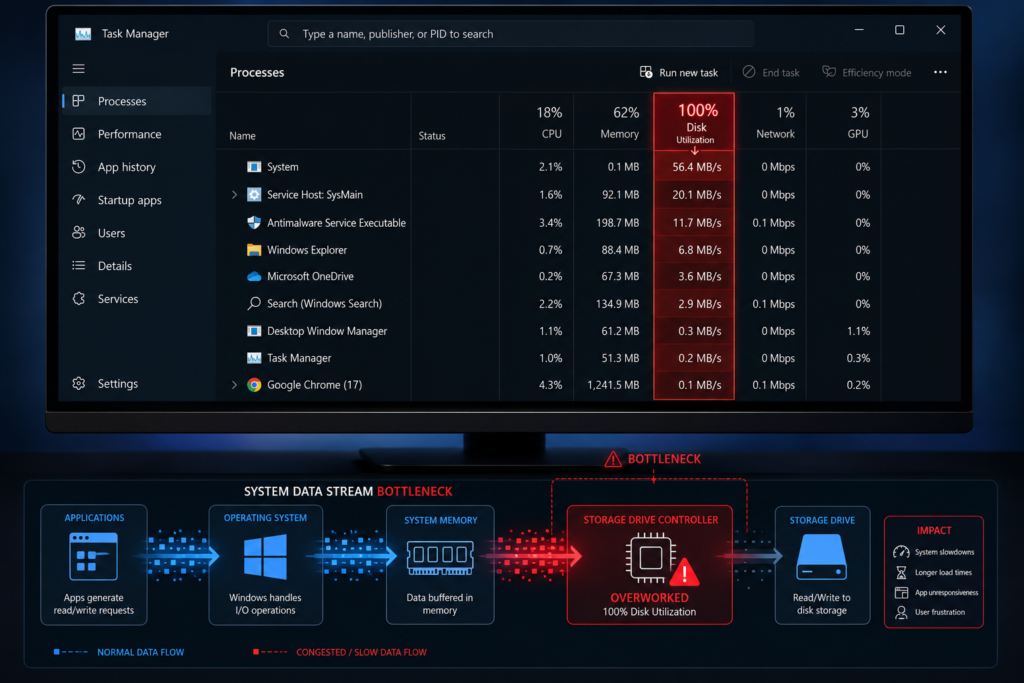
The “100% Disk Usage” phenomenon occurs when the active time of your primary storage drive hits maximum capacity. This means the drive is continuously working at its maximum limit, leaving no room for incoming read or write requests.
When this happens, everyday tasks like opening a browser or writing a temporary log file are forced into a long processing queue. This paralyzes the user interface and mimics the symptoms of severe hardware failure.
The Misconception of Disk Capacity vs. Disk Active Time
A critical point of confusion for general PC users is the difference between storage capacity and drive active time. When Windows Task Manager displays a terrifying 100% disk utilization metric, it is not indicating that your drive is full of files. It means the drive’s controller is fully saturated with active read/write commands, resulting in a device queue length greater than zero.
+-------------------------------------------------------------------------+


| Storage Capacity (Gigabytes)   | Total space available to save files.  |
|--------------------------------+----------------------------------------|
| Drive Active Time (Utilization)| Percentage of time drive handles requests|
+-------------------------------------------------------------------------+
An internal storage drive with 500 gigabytes of free space can easily lock up at 100% utilization if an unoptimized operating system service or background process is firing thousands of tiny, erratic read/write requests per second. This diagnostic training guide will systematically unpack the root causes of this software saturation and provide clear, permanent solutions.
The Core Software Culprits Behind 100% Disk Utilization
Windows relies on several background indexing and telemetry systems that, when misconfigured or corrupted, directly trigger storage drive saturation. Understanding these background systems is key to permanent troubleshooting.
The Windows Search Indexer (SysMain / SuperFetch)
Historically known as SuperFetch and renamed SysMain in modern Windows builds, this built-in service is designed to pre-load frequently used application data directly into system memory.
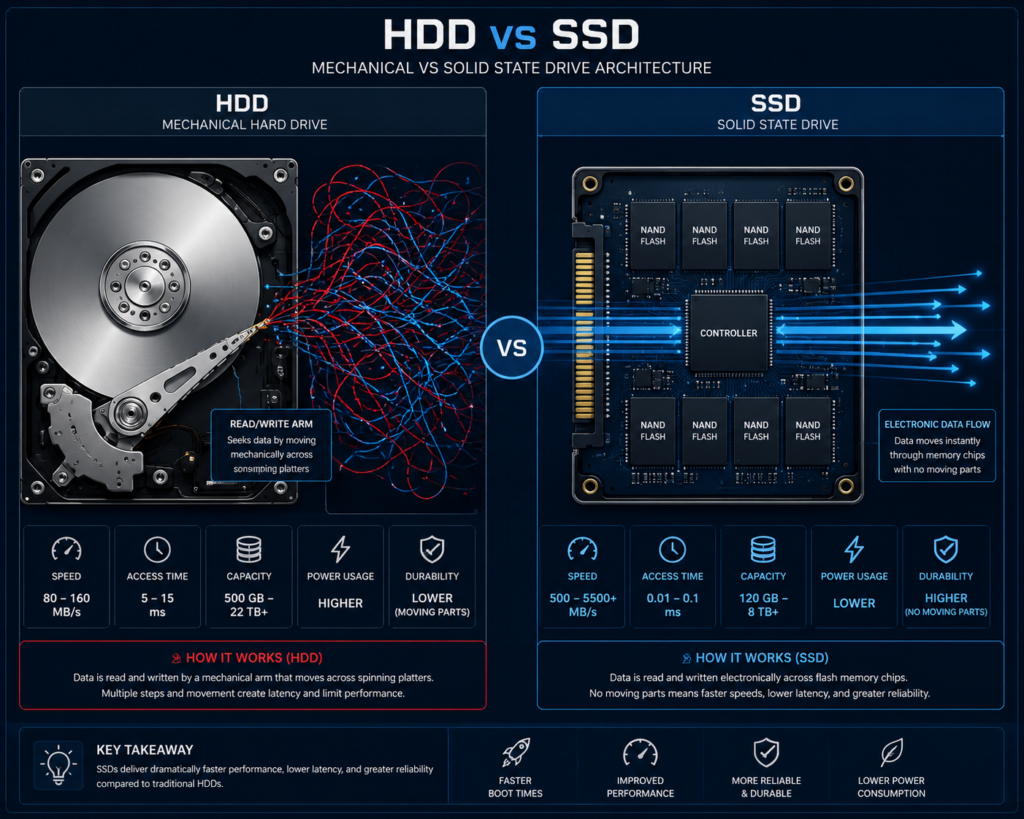
While effective on fast NVMe solid-state drives (SSDs), SysMain can cause severe performance issues on traditional mechanical hard drives (HDDs) or older SATA SSDs. The service often enters an endless loop, continuously indexing random files and generating a nonstop stream of disk writes that completely consume your storage drive’s active processing time.
Connected User Experiences and Telemetry
Windows continuously collects diagnostic data, error reports, and user habit information via the universal Telemetry engine. This system works in the background, writing diagnostic data to log files and sending it back to corporate servers.
If your file system has underlying corruption, the telemetry service will repeatedly scan the corrupted files, causing disk utilization to hit 100% and completely overwhelming your hard drive.
Virtual Memory and Pagefile Misconfiguration
When your system running out of physical RAM, Windows uses a hidden file on your storage drive called pagefile.sys as temporary virtual memory. If your virtual memory settings are left on fully automatic, or if your hard drive is heavily fragmented, the operating system will constantly move data back and forth between RAM and the slower storage drive. This issue, known as “disk thrashing,” instantly spikes utilization to 100%.
Step-by-Step Practical Troubleshooting Architecture
This module details the exact technical actions required to eliminate the 100% disk utilization bug. Follow these steps in order, testing system performance after completing each phase.
Phase 1: Isolation via Task Manager and Resource Monitor
Before altering any system files, you must definitively isolate the exact process name triggering the disk utilization spike.
- Press
Ctrl + Shift + Escsimultaneously to launch the Task Manager. - Click on the Processes tab, then click directly on the Disk column header to sort all active applications by resource utilization.
- Note the process at the top of the list. If it is a generic system container like
Service Host: Local System, click the dropdown arrow to reveal the exact sub-service. - For deeper analysis, click the three-line menu icon, select Performance, and click Open Resource Monitor at the bottom.
- Expand the Disk tab to view the exact files being read and written to in real time, along with the Response Time in milliseconds. Any response time exceeding 50ms indicates a severe hardware response problem or heavy system strain.
[Resource Monitor] ➔ Expand Disk Tab ➔ Analyze "Response Time (ms)" ➔ Over 50ms = Disk Strain
Phase 2: Systematic Deactivation of Problematic Services
If Task Manager reveals that SysMain or Windows Search is consuming the drive’s active time, use the following steps to permanently disable them.
Step 1: Disable the SysMain Service
- Press
Windows Key + Rto open the Run dialog box. - Type
services.mscinto the text box and pressEnter. - Scroll down through the alphabetical list until you locate SysMain.
[Run Dialog] ➔ type: services.msc ➔ locate: SysMain ➔ Properties ➔ Startup type: Disabled
- Right-click SysMain and select Properties.
- Change the Startup type dropdown menu to Disabled.
- Click the Stop button under the service status area, then click Apply and OK.
Step 2: Disable the Windows Search Indexer
- While still inside the
services.mscconsole, scroll down to find Windows Search. - Right-click Windows Search and choose Properties.
- Set the Startup type to Disabled.
- Click Stop to immediately end the disk indexing routine, followed by Apply and OK.
Phase 3: Repairing System Corruption via Deployment Image Servicing and System File Checker
If background telemetry or system files are corrupted, Windows will repeatedly try to read those bad sectors, driving disk utilization up to 100%. Running automated integrity repairs often fixes the issue.
- Click the Windows Start menu, type
cmd, right-click Command Prompt, and select Run as administrator. - Type the following command to repair the underlying system image files and press
Enter:DISM.exe /Online /Cleanup-image /Restorehealth - Allow the process to reach 100%. This can take several minutes as it compares local files with official Windows update servers.
- Next, run the core system integrity scanner by typing this command and pressing
Enter:sfc /scannow
[Admin Command Prompt]
  ├──► Step 1: DISM.exe /Online /Cleanup-image /Restorehealth (Repairs system image)
  └──► Step 2: sfc /scannow (Scans and replaces corrupted files)
- Once the scan is complete, restart the computer to allow Windows to replace any damaged system files with fresh copies.
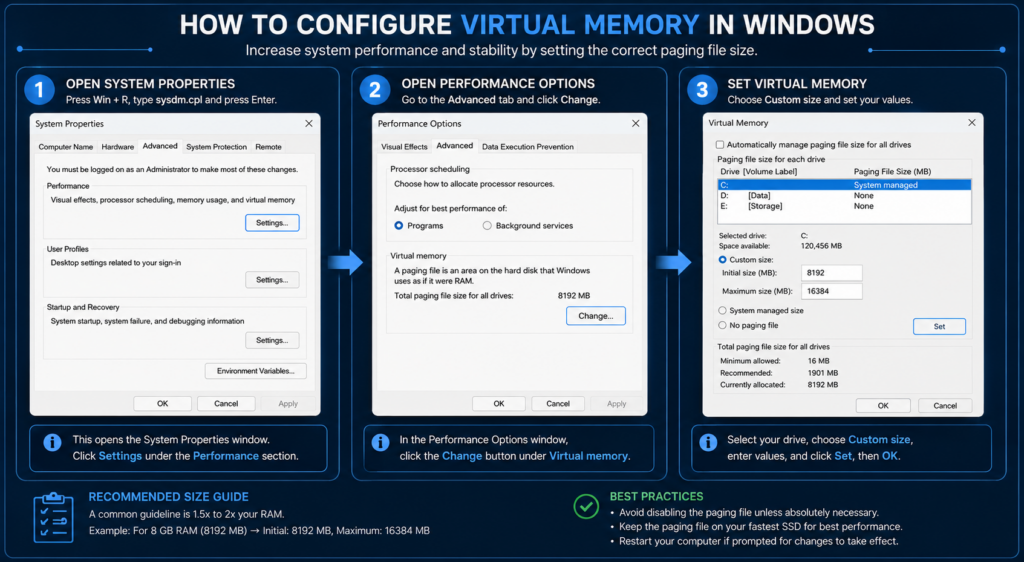
Phase 4: Reconfiguring Virtual Memory allocations
If your system is locked in an endless cycle of virtual memory swapping, manually setting your pagefile size will eliminate disk thrashing.
- Open the Run dialog (
Win + R), typesysdm.cpl, and hitEnterto open System Properties. - Navigate directly to the Advanced tab and click the Settings button inside the Performance box.
- Switch over to the Advanced tab within the new window and click the Change button under the Virtual memory header.
- Uncheck the box labeled Automatically manage paging file size for all drives.
- Select your primary operating system drive (usually
C:). - Click the Custom size radio button.
- Use the following mathematical formula based on your physical RAM size to calculate the values:
- Initial size: 1.5 times your total physical RAM in megabytes (MB).
- Maximum size: 3 times your total physical RAM in megabytes.
(Example for an 8GB RAM system: Initial =8192 * 1.5 = 12288. Maximum =8192 * 3 = 24576).
python
# Virtual Memory Calculation Blueprint (in Megabytes)
def calculate_pagefile(ram_in_gb):
    ram_in_mb = ram_in_gb * 1024
    initial_size = ram_in_mb * 1.5
    maximum_size = ram_in_mb * 3.0
    return initial_size, maximum_size
Use code with caution.
- Click the Set button, followed by OK, and restart your computer to apply the new virtual memory constraints.
Hardware Diagnoses: When Software Fixes Are Not Enough
If you complete all software optimization steps but Task Manager still shows 100% disk usage, your computer may have a failing physical storage drive or an outdated hardware interface.
Checking S.M.A.R.T. Health Status via PowerShell
Self-Monitoring, Analysis, and Reporting Technology (S.M.A.R.T.) is an internal monitoring framework built into modern storage drives to predict hardware failure.
Review the terminal output. If the HealthStatus column displays anything other than Healthy (such as Warning, Unhealthy, or Unknown), your storage drive has physical hardware damage or bad sectors. You should back up your critical files immediately and replace the drive.
Right-click the Windows Start menu button and select Terminal (Admin) or PowerShell (Admin).
Type the following command to query the physical drive status and hit Enter:Get-PhysicalDisk | Select-Object DeviceId, FriendlyName, OperationalStatus, HealthStatus
The SATA Controller AHCI Firmware Glitch
Older computers utilizing standard SATA mechanical drives or SSDs frequently run into a specific hardware firmware conflict known as the Message Signaled Interrupt (MSI) mode bug. This bug occurs when the inbox storage driver (Storahci.sys) fails to coordinate power management tasks with your motherboard controller. This causes the drive to completely lock up and freeze at 100% active time for 10-15 seconds straight.
Advanced Fix for the Driver Glitch
- Right-click the Start Menu and select Device Manager.
- Expand the IDE ATA/ATAPI controllers category.
- Right-click the listed controller (e.g., Standard SATA AHCI Controller) and select Properties.
- Go to the Details tab, click the Property dropdown menu, and select Device instance path.
- Copy the displayed hardware path string (e.g.,
PCI\VEN_8086&DEV_A102&...).
[Device Manager] ➔ IDE ATA/ATAPI controllers ➔ Properties ➔ Details ➔ Device instance path (Copy String)
- Open the Run box (
Win + R), typeregedit, and hitEnterto open the Registry Editor. - Navigate to the following deep folder path:
HKEY_LOCAL_MACHINE\System\CurrentControlSet\Enum\PCI\ - Locate the exact hardware string folder name you copied in Step 5, then dig down through its sub-folders:
Device Parameters \ Interrupt Management \ MessageSignaledInterruptProperties. - Double-click the registry key named MSISupported on the right panel and change its value data from
1to0. - Close the Registry Editor and restart your computer to apply the low-level hardware interrupt fix.
[Registry Path] ...\MessageSignaledInterruptProperties ➔ MSISupported ➔ Change Value from 1 to 0
Advanced Technical Architecture of Windows Storage System Optimization
To keep your computer running smoothly over the long term, you need to understand how the operating system’s storage stack interacts with your physical hardware. This architectural map illustrates how files move from background software services down to the physical storage sectors on your drive.
                     [Background Software Services Layer]
                    (SysMain, Windows Telemetry, Search Index)
                                       │
                                       ▼
                       [Windows File System Core (NTFS)]
                        (Handles file attributes and locks)
                                       │
                                       ▼
                     [Virtual Memory Management Workspace]
                       (Calculates pagefile allocation sizing)
                                       │
                                       ▼
                      [SATA/NVMe Controller Driver Stack]
                      (Storahci.sys / Advanced NVMe Protocols)
                                       │
                                       ▼
                    [Physical Solid-State or Mechanical Disk]
                       (S.M.A.R.T. Health Blocks & Sectors)
1. Background Software Services Layer
This top layer contains all the background tasks running on your computer. When services like SysMain or the search indexer run unoptimized, they flood the file system with constant, non-stop read/write requests, triggering a system-wide performance bottleneck.
2. Windows File System Core (NTFS)
This layer manages file permissions, locations, and data attributes across your drive. If this system layer gets corrupted, the entire storage stack slows down as Windows repeatedly tries to read corrupted or unreadable data sectors.
3. Virtual Memory Management Workspace
This architectural space serves as your computer’s overflow storage area. When physical RAM fills up, this engine steps in to move data into your system pagefile (pagefile.sys), keeping programs running smoothly even under heavy workloads.
4. SATA/NVMe Controller Driver Stack
This driver layer acts as the primary translator between Windows software and your storage hardware. Fixing bugs in this layer (like the Storahci.sys firmware glitch) ensures that hardware commands execute cleanly without stalling system operations.
5. Physical Solid-State or Mechanical Disk
The physical hardware layer at the bottom of the stack. This layer relies on built-in diagnostic systems like S.M.A.R.T. to actively monitor block stability and drive health, warning users before hardware issues lead to permanent data loss.
Solvable Frequently Asked Questions (FAQ)
Q1: Is it safe to permanently disable SysMain and Windows Search, or will it break my computer’s functionality?
A: It is entirely safe to disable both services. Disabling SysMain will not cause data loss or application instability; it simply stops Windows from pre-loading programs into memory in the background. Disabling Windows Search merely turns off background file indexing.
You will still be able to search for your files manually using File Explorer, though the search process might take slightly longer since the system will scan your directories in real time rather than referencing a pre-built background index catalog.
Q2: Why does Google Chrome or Microsoft Edge sometimes trigger 100% disk usage, and how do I fix it?
A: Web browsers typically trigger high disk usage when their internal diagnostic logging, cache management, or hardware acceleration settings malfunction. This causes the browser to constantly write temporary internet files to your storage drive. You can easily solve this issue with these quick steps:
[Browser Settings] ➔ System ➔ Turn OFF "Continue running background extensions"
                              └──► Turn OFF "Use graphics acceleration when available"
Open your browser’s settings page, navigate to the System section, and toggle off the options for Continue running background extensions when the browser is closed and Use graphics acceleration when available. Finally, clear your browser’s cached files and history to wipe out any corrupted temporary storage files.
Q3: Why did my computer start suffering from 100% disk usage immediately after installing a new Windows Update?
A: This is a common issue typically caused by an incomplete installation process or a corrupted update file. When an update fails to install correctly, the Windows Update service (wuauserv) can get stuck in a continuous loop, repeatedly reading and writing data to verify file installations.
To resolve this issue, clear the temporary update cache with these steps:
[Admin Command Prompt] ➔ type: net stop wuauserv ➔ Delete contents of SoftwareDistribution folder
Open a command prompt window as an administrator and type net stop wuauserv to halt the update service. Next, open File Explorer and navigate to C:\Windows\SoftwareDistribution\. Delete all files and folders inside this directory to wipe out the corrupted update cache. Finally, return to your command prompt window, type net start wuauserv to restart the service, and check your system performance.
Q4: Will upgrading my system from a mechanical Hard Disk Drive (HDD) to a Solid-State Drive (SSD) permanently fix the 100% disk usage bug?
A: Yes, upgrading to an SSD is the single most effective hardware solution for this issue. Mechanical hard drives rely on moving parts and are easily overwhelmed by the thousands of random, scattered read/write requests modern operating systems generate every minute.
Solid-state drives use fast flash memory with no moving parts, allowing them to process these input/output requests up to ten times faster than older hard drives. Upgrading your primary drive to an SSD will instantly clear processing backlogs and eliminate system slowdowns.

“AI enthusiast and Digital entrepreneur dedicated to helping others Leverage Technology for Financial Freedom”.
As an Amazon Associate, I earn from qualifying purchases.
`